Get Quick Support
About Quick Support
Our Quick Support application makes it simple and secure for us to provide technical assistance for the products you have purchased.
Unlike standard remote access software, Quick Support does not install permanently on your computer. Instead, it runs only when you launch it, giving you full control at all times. Once you open the application, you will be prompted to allow the connection. Only after your approval can our support team access your system.
When the session is complete, simply close the application to end access immediately. No files or settings remain on your computer, ensuring that your privacy and data security are fully protected.
This solution provides you with safe, on-demand support without any long-term installation or background processes.

Steps to run Quick Support
3 Easy Steps To Get Quick Support Application Running
Download Quick Support
Download the Quick Support software from TeamViewer
Close Existing TeamViewer
If you already have TeamViewer running in your computer, you will need to exit it. Just go to the TeamViewer tray icon and right click to open the pop-up menu. Select Exit Teamviewer.

Run Quick Support
Let us know when you are ready and run Quick Support. Allow to connect when prompted.
Step 1 : Download Quick Support
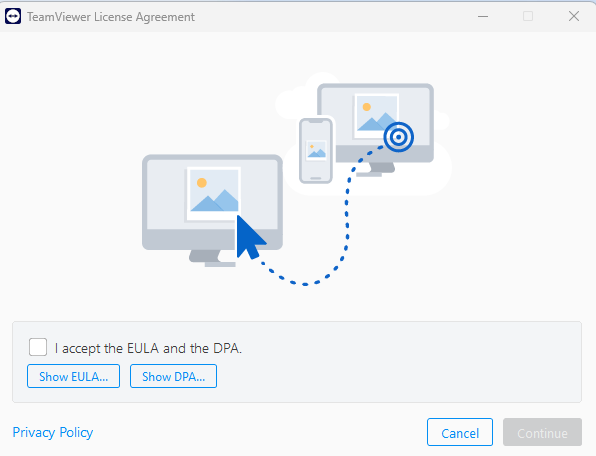
To begin, you will need to get the Quick Support application. You can download the software from the official TeamViewer website by clicking the Download Quick Support button above. Then accept the terms and agreement (EULA and the DPA) to continue.
Step 2 : Close Existing TeamViewer
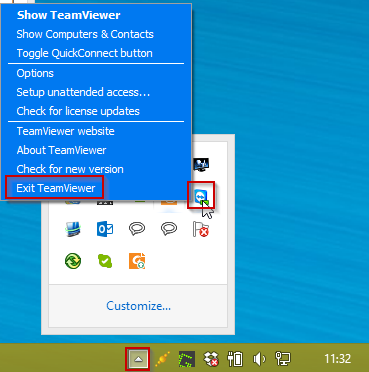
Before you can connect with us, please make sure you close any other TeamViewer applications that may be running on your computer. To do this, simply locate the TeamViewer icon in your system tray, right-click on it, and select "Exit TeamViewer."
Step 3 : Run The Quick Support Application
Launch the Quick Support App.
Double-click the downloaded Quick Support file. It will open without installing anything on your system.
Wait for the Interface to Load
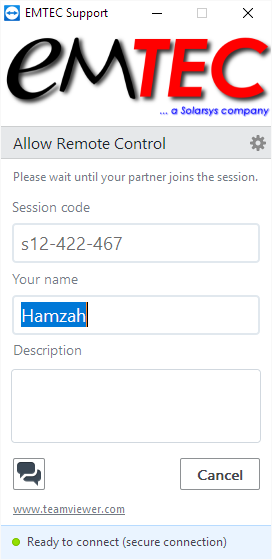
The EMTEC Support window will appear with the heading “Allow Remote Control.”
Enter Your Details
In the Session Code field, enter the code provided by the EMTEC support team (e.g. s12-422-467).
In the Your Name field, type your name so our support team can identify you. Optionally, fill in the Description field with a brief note about your issue.
Accept Terms of Use
Tick the checkbox labeled “I accept the terms of use” to proceed.
Click Connect
Once all fields are filled, click the Connect button. This will notify our support team that you're ready.
Allow Remote Access When Prompted
When the system asks for permission to allow remote control, click Allow. This enables our technician to assist you directly.
Stay Connected Until the Session Ends
Keep the application open during the support session. You may close it once the technician confirms the session is complete.
Benefits of using TeamViewer Quick Support
Essentially, TeamViewer Quick Support offers a balance of simplicity (for end-users initiating connection), speed (for experts providing help), and reasonable security, making it ideal for spontaneous remote assistance needs.

Ease and Speed of Use
This is its primary advantage. The recipient (or their end-user) can initiate a connection instantly with just one click on a QR code or link provided by the expert (IT admin, technician). No downloads, installations, complex setup, or configuration required from the person seeking help.

Quick Remote Assistance
Allows experts to quickly connect to a user's machine without the user needing technical knowledge to establish the connection. This speeds up troubleshooting and resolving software issues, hardware problems, forgotten passwords (like Windows login), etc., significantly reducing downtime.

Secure Connection
TeamViewer uses advanced tunneling technology through its servers, encrypting all data passed between computers by default. The Quick Support session itself operates securely over this encrypted channel, making remote access relatively safe without needing users to set up complex VPNs or firewall rules beforehand (though basic security practices are still advised).

Targeted Access
Provides controlled and limited access for the expert. They don't necessarily gain full control unless explicitly granted via an ID/password during the session initiation. This means help can be given precisely where needed

Simplicity & Low Friction
Excellent for users who are not comfortable or technically savvy with standard remote desktop tools (like RDP). It removes barriers and makes getting help much less daunting.
Time-Based Access Control
Experts control how long the access link remains valid (e.g., "valid for 15 minutes"). This adds a layer of security and convenience, ensuring sessions expire automatically if not started immediately by the recipient or transferred shortly after initiation.
Cross-Platform Compatibility
Works between different operating systems (Windows, macOS, Linux) easily over any internet-connected device or network.

Initiated by Help-Seeker
The person needing assistance starts the process, which can be beneficial if they only realize their problem after hours or when someone else is available to initiate the Quick Support session on their behalf.
Session Transfer
If an issue requires deeper insight from someone else on the expert's team or they need to demonstrate something first before transferring control to another technician (after starting the Quick Support session), this feature allows for seamless handover of the remote session connection using a unique ID and password generated during the process.
No Deep Firewall Holes Needed
While standard ports might need opening for full TeamViewer functionality, Quick Support often relies on randomly assigned "Quick-ID/Password" connections through the TeamViewer tunneling server, sometimes making it easier to get working help sessions past restrictive firewalls without permanent port openings.
Contact Us If You Need Any Help !
Our support team will be contacting you upon receiving your email.